English translation
I Connected DeepSeek-V4 to Hermes: Crawling Dozens of Web Pages with One Sentence
Hi, I am Guozhen.
I have been using OpenClaw for a while, and the experience has been good. Even when using local models such as Qwen3.5:9B, token use becomes more flexible and the replies feel smooth.
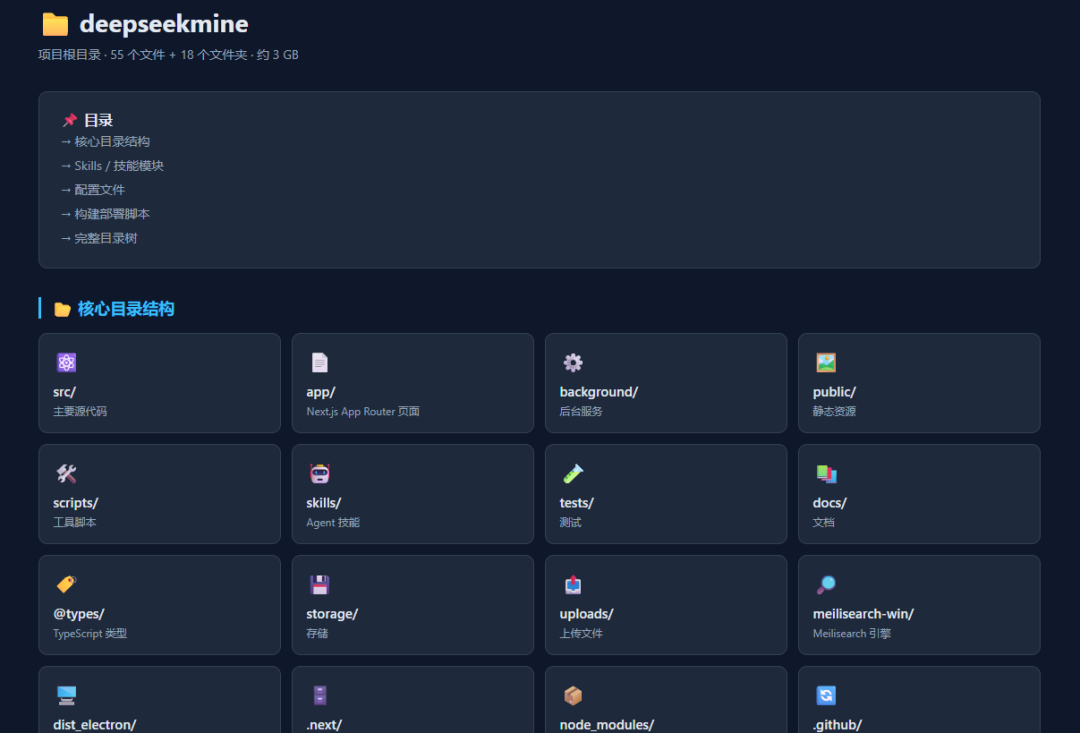
It can easily generate an HTML-style file-structure tree:
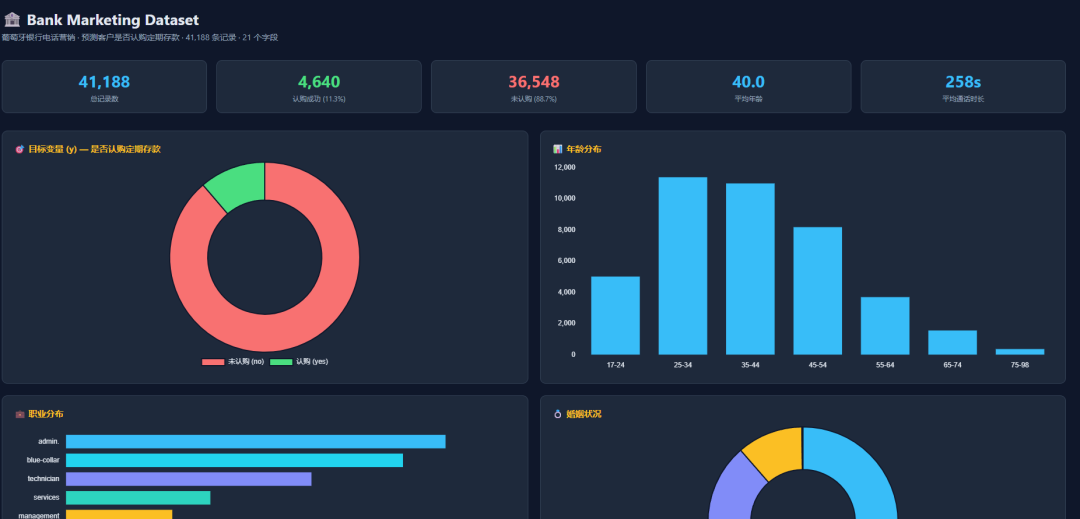
It can also generate a data-analysis dashboard in HTML:
I also tested the Hermes agent recently and found it smooth. This article summarizes Hermes installation, DeepSeek-V4 configuration, and a hands-on Hermes test.
1. Hermes agent
Recently another project called OpenHuman also appeared. I will cover it later. For now, here is a simple comparison between the three:
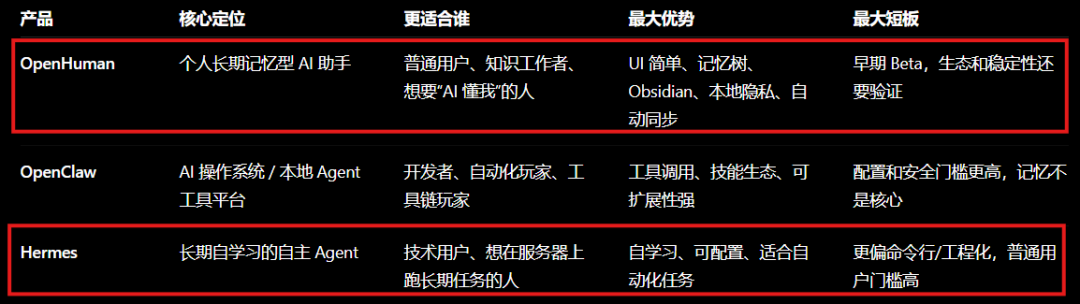
After trying Hermes, I found the barrier to entry is not too high. Its core positioning is a long-term autonomous learning agent.
It can automatically turn knowledge into experience. In other words, it is an agent that can gradually understand us better.
This article focuses on how to install Hermes on Windows. On macOS, installation is much simpler and can be done with one command.
2. Installing Hermes on Windows
Step one: install WSL2 on Windows.
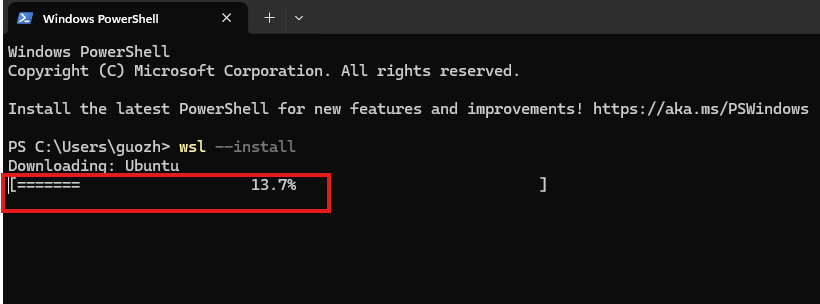
Open PowerShell as administrator and run:
wsl --install
Ubuntu begins downloading:
The installation is quick:
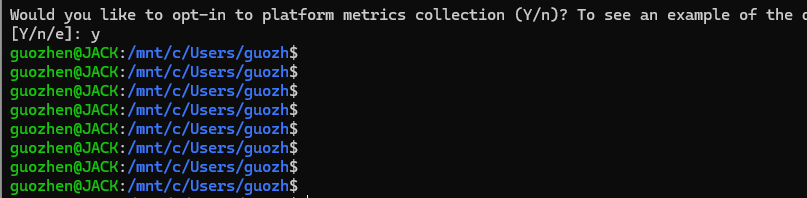
After Ubuntu is installed, run the following command to update sources:
sudo apt update
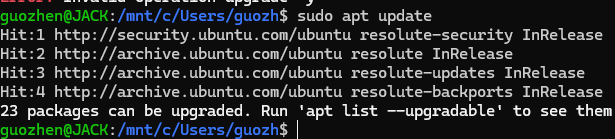
Then install basic tools:
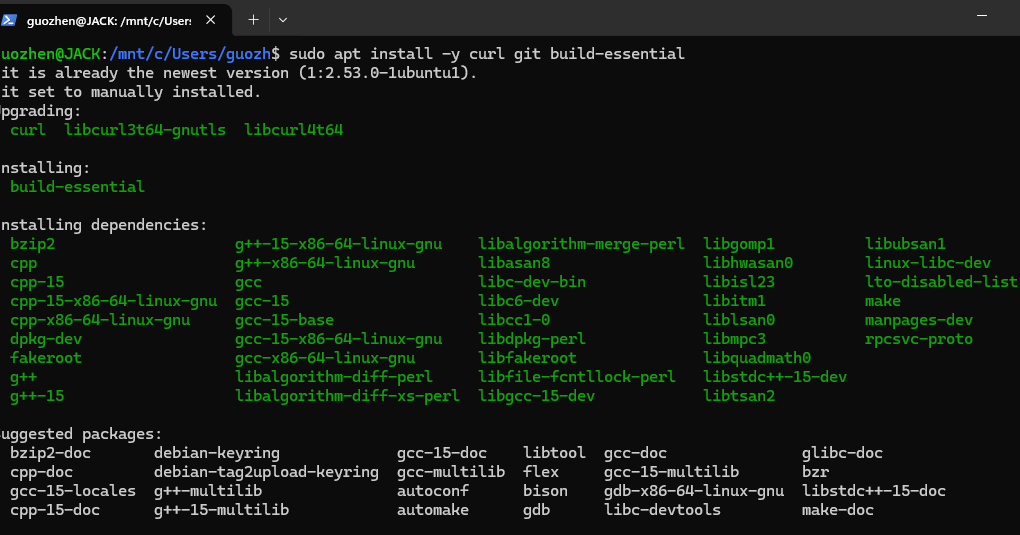
sudo apt install -y curl git build-essential
Installation starts:
Step two: install Hermes.
In the Ubuntu terminal, run:
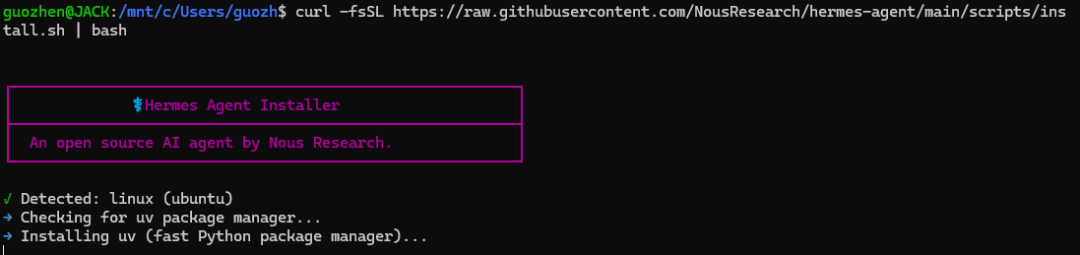
curl -fsSL https://raw.githubusercontent.com/NousResearch/hermes-agent/main/scripts/install.sh | bash
The installer starts:
After installation, this screen appears:
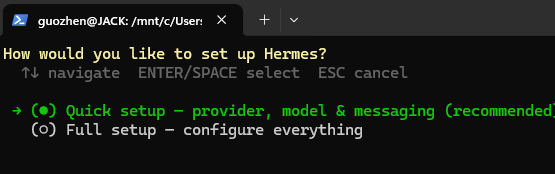
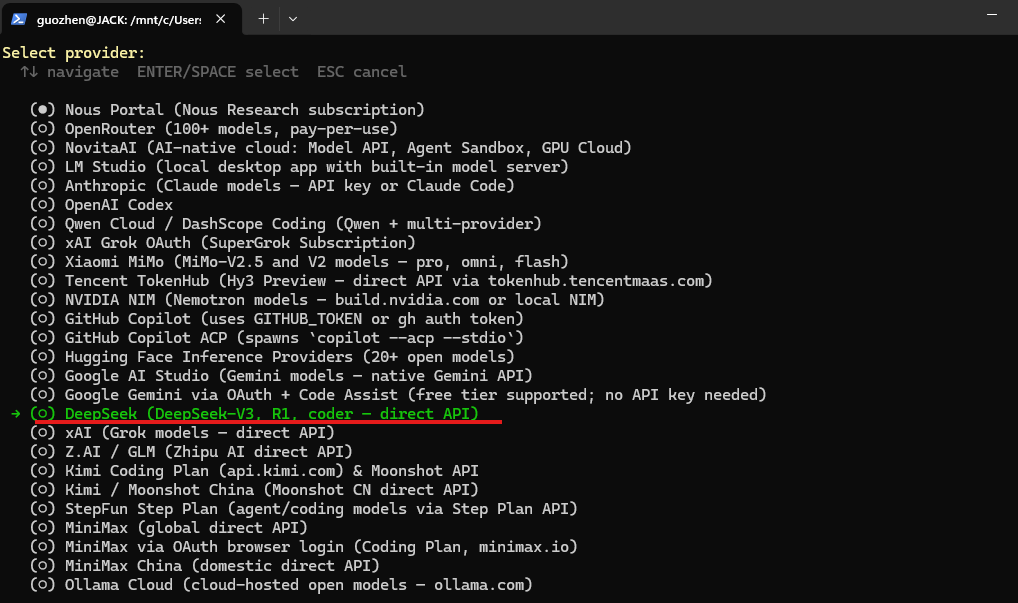
Press Enter. Next, configure the large-model API. I connected the cost-effective DeepSeek-V4 Flash model:
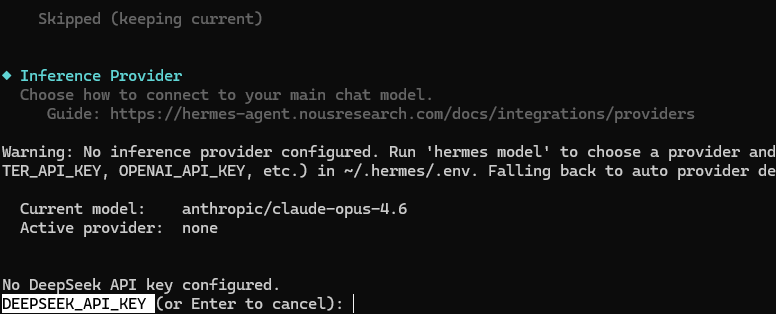
Press Enter and enter the API key. You can generate it directly from the DeepSeek website and paste it here:
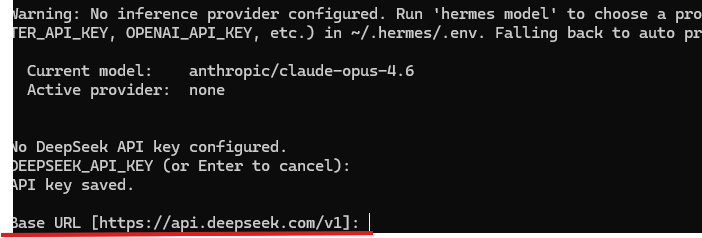
For Base URL, the default is fine. Press Enter:
Choose Flash:
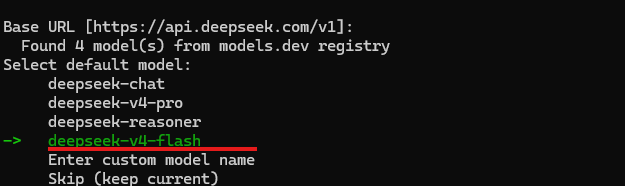
At this point:
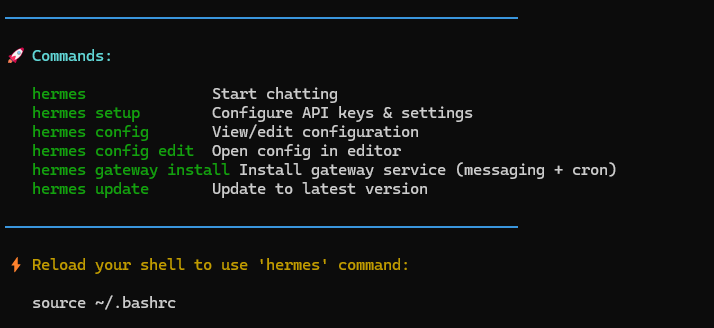
Hermes has been installed successfully.
3. Hermes automatically crawls data from multiple web pages
Enter the Ubuntu subsystem on Windows and type hermes:
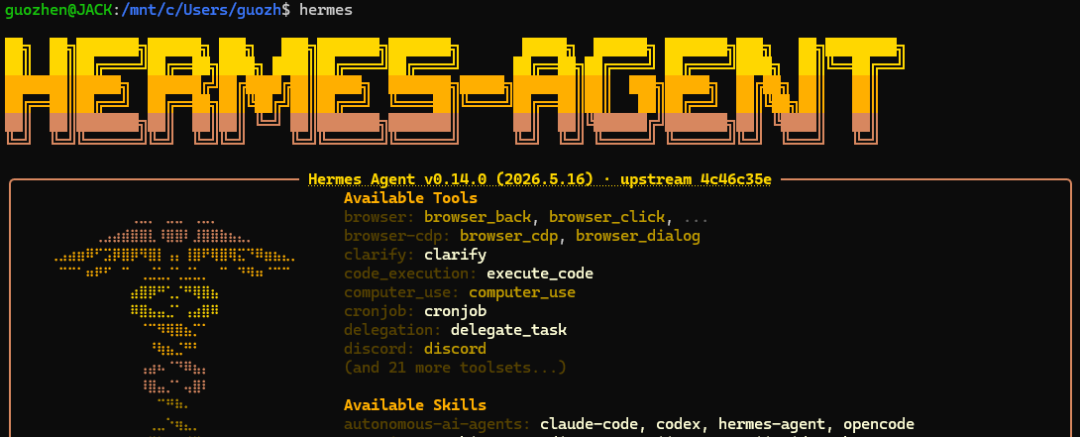
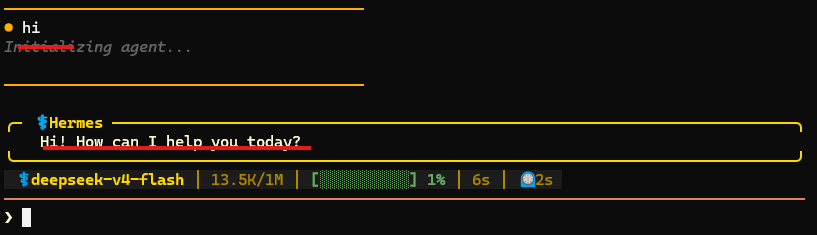
Type hi. If you get the correct reply, the key and Base URL are configured correctly. Otherwise, check again by running hermes setup.
I used my own blog site, zglg.work, as the example:
The highlighted area includes dozens of pages:

I asked Hermes to fetch the first 20 article links and titles:
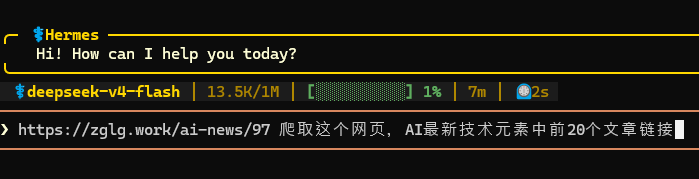
In a moment, it crawled the 20 article links and titles:
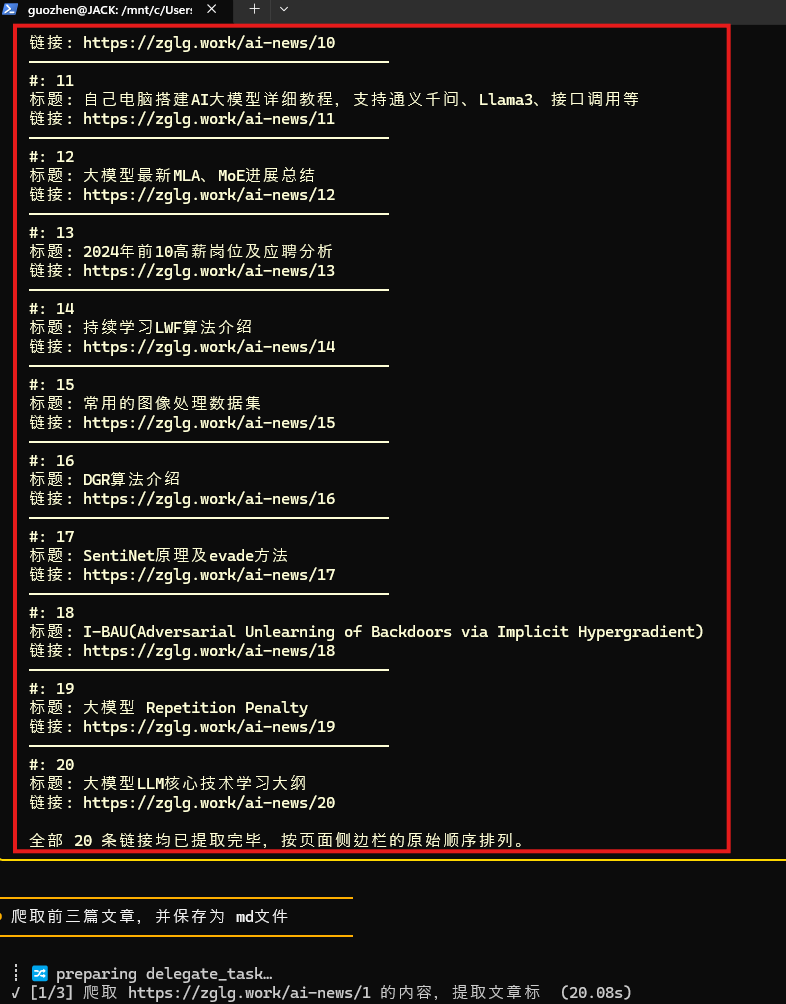
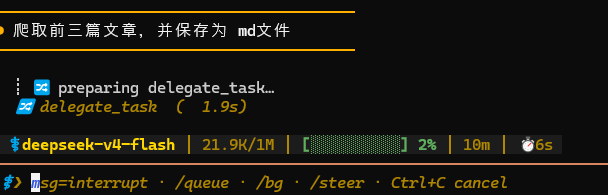
To save space, I only asked it to crawl the first three articles and save them as Markdown files:
In 48 seconds, all three articles were crawled:
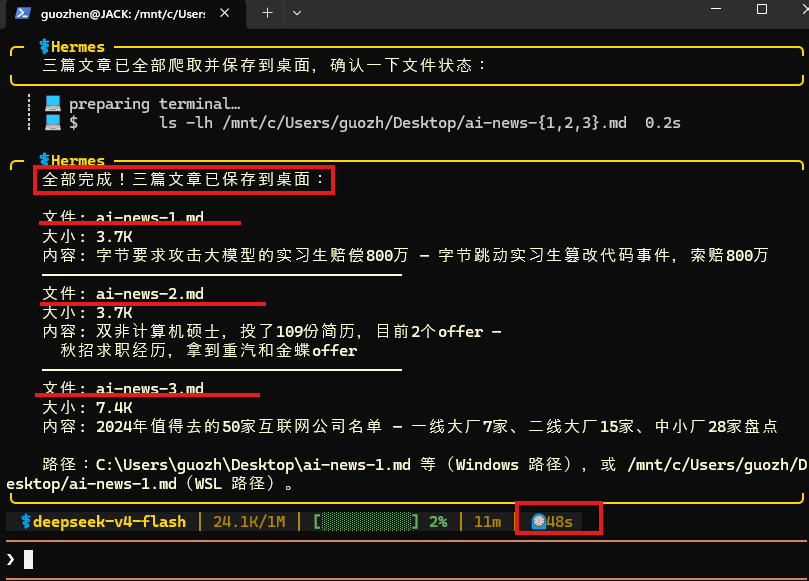
The save path was clearly displayed:
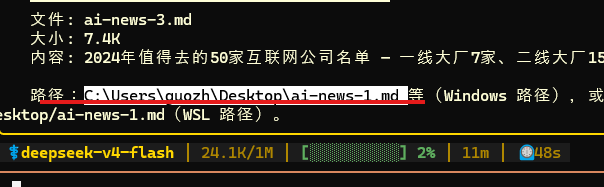
I opened the files to confirm. Text and images were formatted properly:
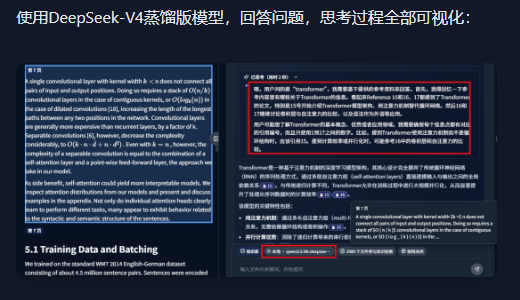
This truly achieved the goal of using plain-language instructions to crawl web materials directly. If you have similar needs, you can follow the steps above.
Final thoughts
Hermes automatically reads web pages, organizes material, and saves files, handing repetitive information-collection work to AI.
After this test, my feeling is that Hermes is smooth and agile.
This English edition preserves the screenshots and workflow order from the original Chinese article.